2 Installing Void for Vikix 
Vikix goes on top of an ordinary Void Linux, so the first step is Void itself. This page walks through its installer once, screen by screen, with the answers Vikix needs; the pictures are from a real install, made for this page. It takes about half an hour, most of it waiting.
There is a shorter way: Vikix’s stick installs Void and Vikix together after a few questions, with a newer kernel than Void’s own image, which a laptop made since 2025 may need.
Installing erases the disk you choose. Copy off anything you want to keep first.
You need:
- a 64-bit PC or laptop (x86_64), with 30 GB of disk or more,
- a USB stick of 2 GB or more, which will be erased too,
- the network: a cable is simplest; Wi-Fi works as well.
- The Void image on a USB stick
- Start from the stick
- Start the installer
- The menu, step by step
- The first start, then Vikix
2.1 The Void image on a USB stick 
Download the live image from voidlinux.org/download: x86_64, glibc, base, a file named like void-live-x86_64-20250202-base.iso. Vikix needs the glibc one, not musl. Base is enough, since Vikix brings the desktop; the xfce image works too, but brings a desktop you won’t use.
From the same page, take sha256sum.txt and check the image, so you know it arrived whole:
sha256sum -c --ignore-missing sha256sum.txt
Write it to the stick. On Linux, find the stick’s name with lsblk (here /dev/sdX; the wrong name erases the wrong disk), then:
sudo dd if=void-live-x86_64-20250202-base.iso of=/dev/sdX bs=4M status=progress oflag=sync
On Windows, Rufus writes it (choose DD image mode when it asks); on a Mac, balenaEtcher.
2.2 Start from the stick 
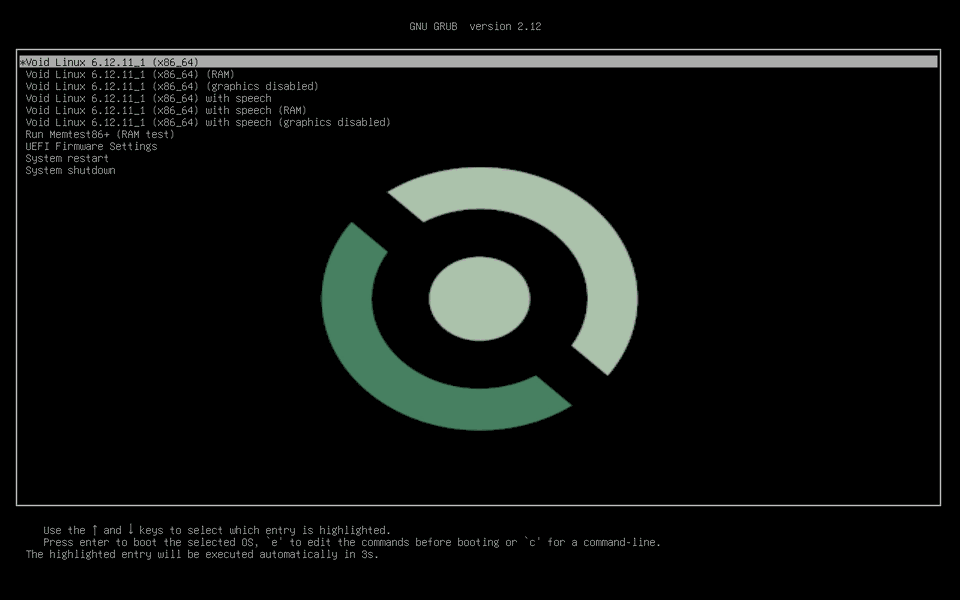
Plug the stick in and start the computer with its boot menu key, often F12, F11, F9 or Esc (a ThinkPad: F12), and pick the stick. If it refuses to start it, switch Secure Boot off in the firmware settings: Void’s image isn’t signed for it.
The first entry starts the live system:
2.3 Start the installer 
The live system tells you how to log in. Log in as root, password voidlinux, and start the installer:
void-installer
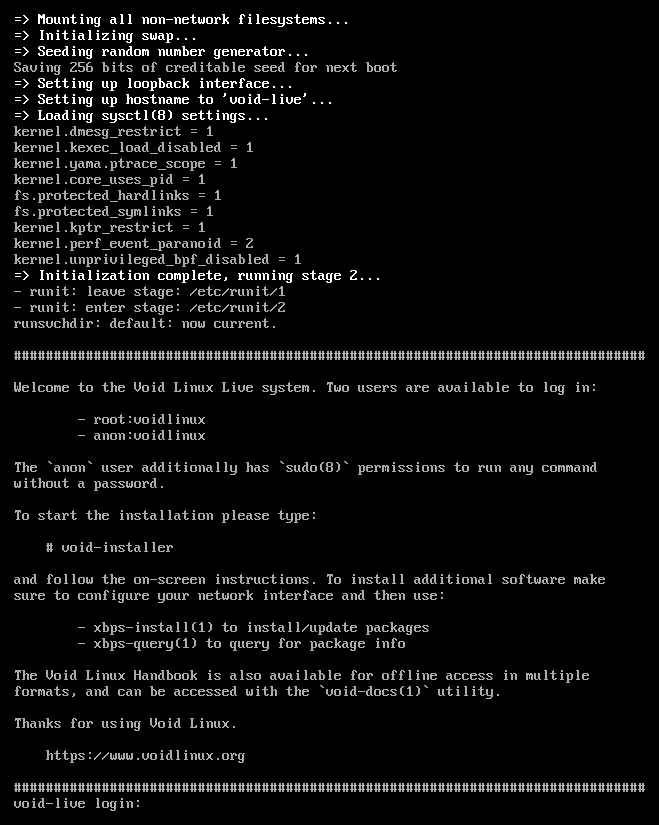
After a welcome, its menu lists every step in order. Go down it from the top; after each step it moves to the next one by itself. Arrows move, Enter chooses, Tab switches between the list and the buttons, Space ticks a box, and typing a letter jumps to the entries that start with it.
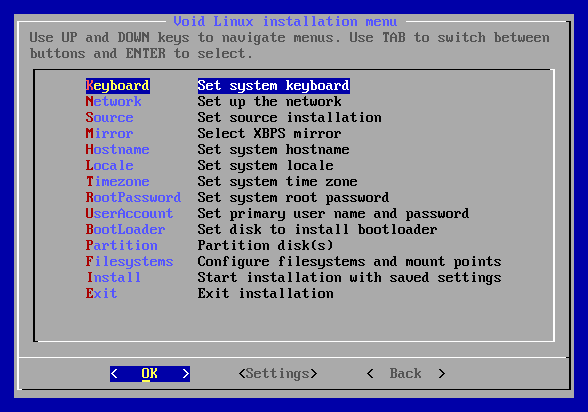
2.4 The menu, step by step 
- Keyboard
- Network
- Source
- Mirror
- Hostname, Locale, Timezone
- RootPassword
- UserAccount
- BootLoader
- Partition
- Filesystems
- Install
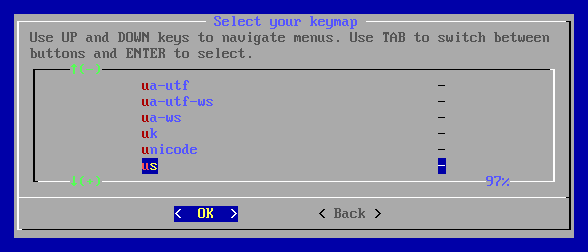
2.4.1 Keyboard 
Your keyboard’s layout, for the text screens: us for most English keyboards, uk, de, fr and so on. (The desktop’s layout is set apart, in Vikix’s welcome.)
2.4.2 Network 
Choose the network device. A cable is eth0 or a name like enp0s31f6: answer Yes to DHCP. Wi-Fi is wlan0 or wlp…: the installer asks for the network’s name and password, then the same DHCP question. It says Network is working properly! when it is.
2.4.3 Source 
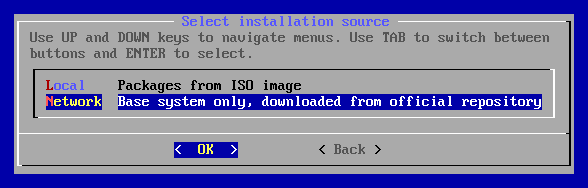
Network: the current packages, straight from Void. Local installs the ones on the stick, which can be months old; it works too, and Vikix’s install updates them anyway, but Network saves that step.
2.4.4 Mirror 
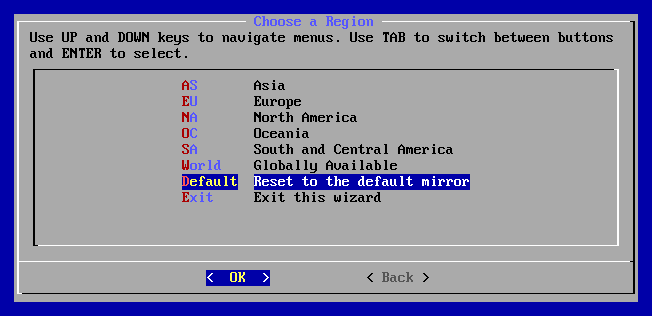
Choose Default and confirm. Vikix’s install times Void’s mirrors itself and uses the fastest, so there’s no need to pick one here.
2.4.5 Hostname, Locale, Timezone 
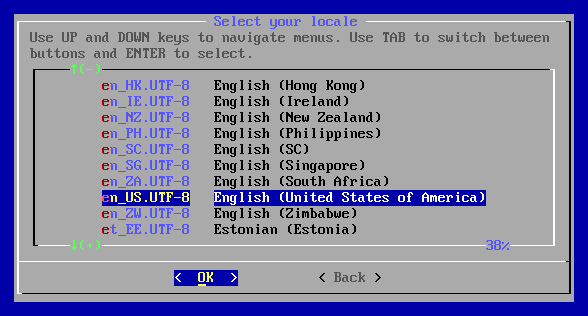
The computer’s name (mylaptop, anything short), the language and formats (en_US.UTF-8; the list is sorted by language name, so English is under E), and your region and city.
2.4.6 RootPassword 
A password for root, twice. You’ll rarely use it: day to day, your own password and sudo do the work.
2.4.7 UserAccount 
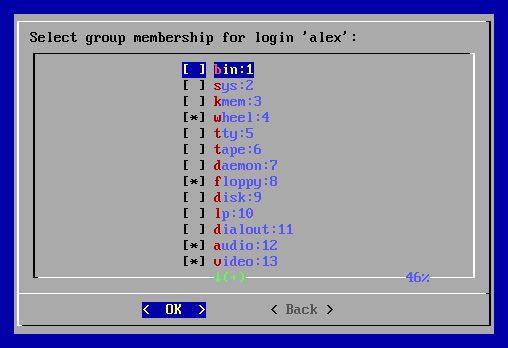
Your login name (short, lowercase: alex), the name shown for it (Alex), and your password, twice. Then the groups: keep wheel ticked. It is already, with audio, video and a few more; wheel is what lets you use sudo, and Vikix’s install needs it. Vikix adds the other groups it needs itself.
2.4.8 BootLoader 
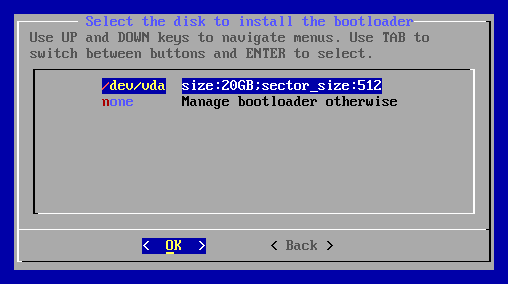
The disk Void goes on, then Yes to a graphical terminal for the boot menu. On a laptop the disk is /dev/nvme0n1 or /dev/sda; in these pictures it’s a VM’s, /dev/vda.
2.4.9 Partition 
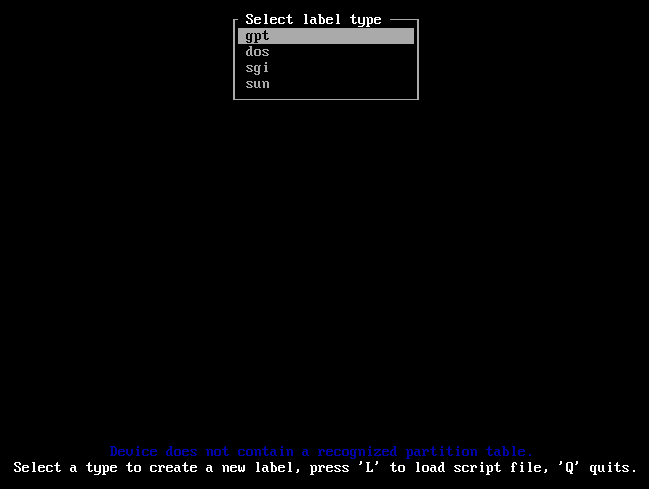
Choose the same disk, then cfdisk. The installer explains what it needs: on a computer with UEFI, which is nearly every one from the last ten years, two partitions on a gpt table. If cfdisk asks for a label type, the disk is empty: choose gpt.
- Delete the partitions that are there, if any (Delete on each): this is the erasing.
- New, size
512M, then Type: EFI System (the first in the list). - Down to the free space, New, and take the size it offers: the rest of the disk, type Linux filesystem.
- Write, type
yes, then Quit.

An older PC without UEFI (it has no EFI settings, only "BIOS"): choose dos instead, make one partition of type Linux, and mark it bootable. The Void handbook has the details.
2.4.10 Filesystems 
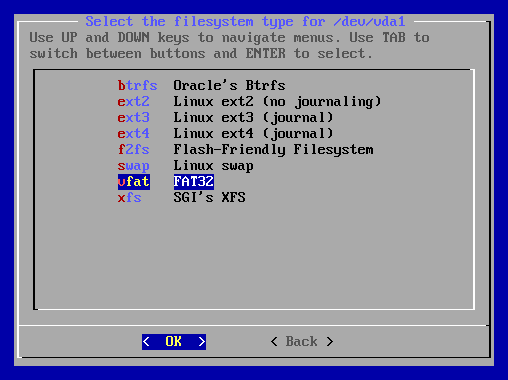
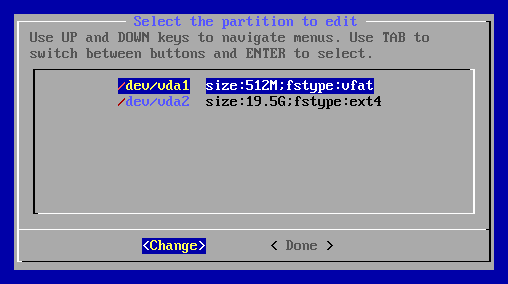
Each partition gets a format and a place:
- the 512M one: vfat, mount point
/boot/efi, and Yes to a new filesystem; - the big one: ext4, mount point
/, and Yes.
ext4 is the safe choice and what Vikix is tested on. Then Done.
2.4.11 Install 
The installer shows what it will do. This is the moment the disk is erased; the earlier steps only noted your answers. Check that it’s the disk you mean, then Yes.
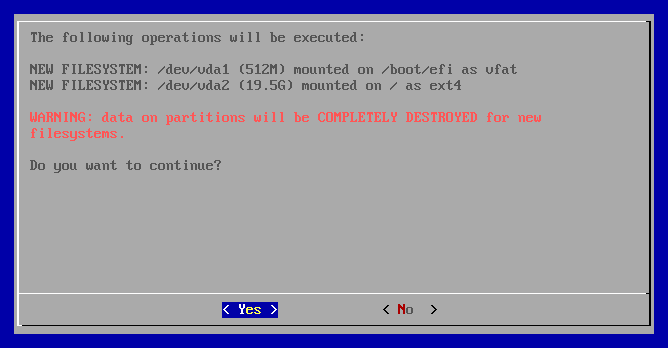
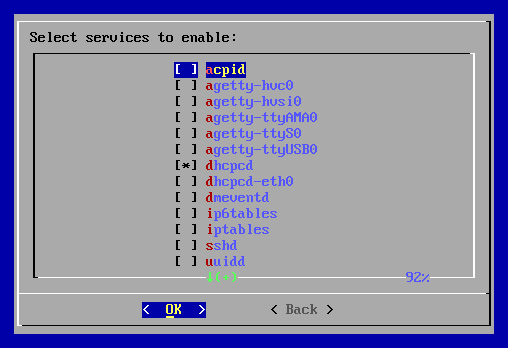
It downloads and installs the base system: a few minutes. Then it asks which services to start at boot. Leave it as it is: dhcpcd, which is ticked, gives the new system its network at the first start, which Vikix’s install needs. (Vikix hands the network to NetworkManager later, and switches dhcpcd off itself.)
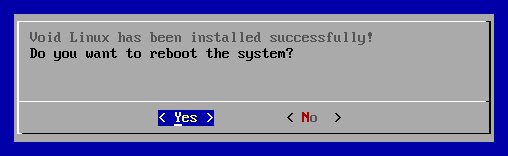
Last: Void Linux has been installed successfully! Answer Yes to reboot, and take the stick out once the screen goes dark. (Not before: the installer runs from the stick until then.)
2.5 The first start, then Vikix 
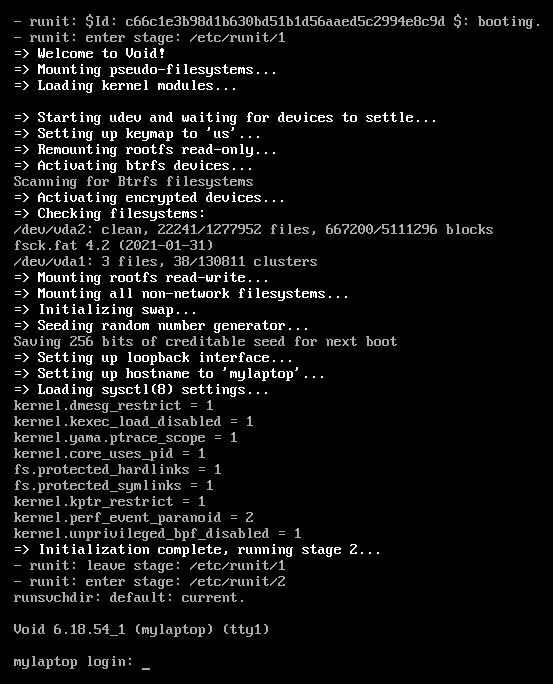
The new Void starts on its own disk and asks you to log in. Log in as yourself, not root.
A fresh Void has neither curl nor git, but it has xbps-fetch, which downloads a file. Fetch Vikix’s install, read it if you like (it’s short), and run it:
xbps-fetch -o vikix-install https://vikix.dev/install
less vikix-install          # q leaves
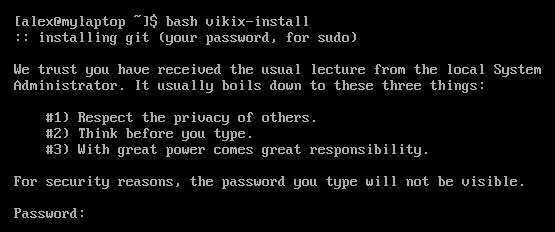
bash vikix-install
It asks for your password once, installs git, puts Vikix in ~/vikix, and runs its install. From there it runs by itself, for twenty minutes or more: it downloads the desktop and builds the window manager.
When it says it’s done, with what to do next, restart:
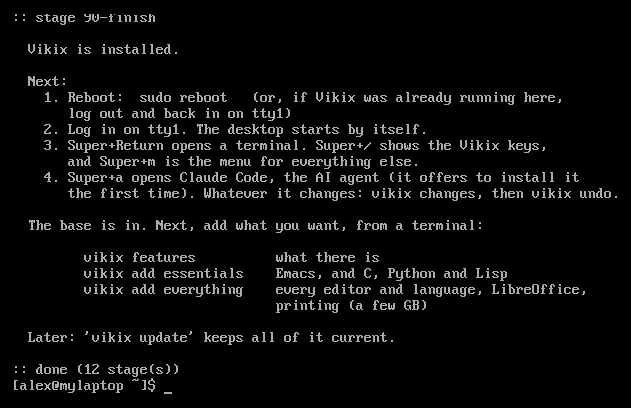
sudo reboot
Log in on the first screen again, and the desktop starts. Your first hour is the next page.
If the install stops with an error, the message names the stage that failed; When something breaks says what to do.