4 Your first hour 
You’ve installed Vikix and logged in. This page is the first hour: what you’re looking at, the keys worth learning first, adding what you need, making it look yours, and keeping it current. Installing Void for Vikix is the page before.
- What you’re looking at
- The keys that matter
- Add what you need
- Make it look yours
- Keep it current
- When you’re stuck
4.1 What you’re looking at 
At the top is the bar: the workspaces on the left, then the windows on this one; on the right the network, the sound, the battery and the time, and before them a word when something needs you (updates 12, backup 9d). It takes clicks: a workspace’s number goes there, a window’s title focuses it, vol opens the sound mixer, the network opens its settings.
The rest of the screen is windows. There are no title bars and no overlapping: each window fills its part of the screen, and you split the screen to put two side by side. That’s StumpWM, and the keys below are how you drive it.
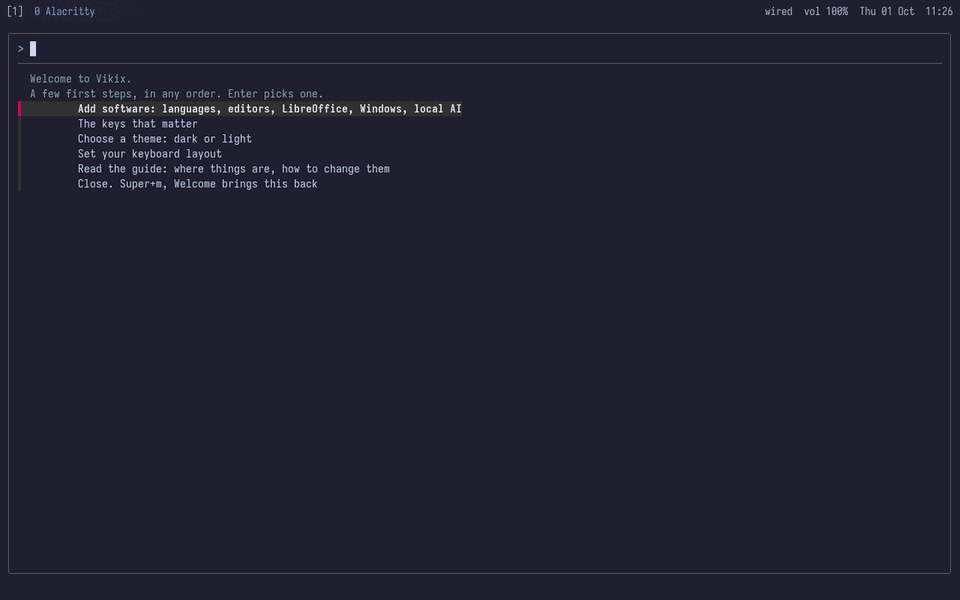
The first time, a terminal opens with the welcome. Follow it: it adds software, shows the keys, picks a theme and your keyboard layout, and ticks each step off once it’s done. Super+m → Welcome brings it back.
4.2 The keys that matter 
Super is the key with the Windows logo. Five to start with:
Super+Returna terminal
Super+Spaceeverything in one box: type a few letters of a window, a command, a project, a web app, a saved layout or a program, Enter. A sigil first searches one kind instead:
>the menu,@projects and desks,#the docs,?what is this,/a file (the empty box names them); Enter shows the hits, Enter again opens oneSuper+dthe launcher: programs only
Super+mthe Vikix menu: everything, in sections; type a word to find an entry of any
Super+/every key on one card; the next key closes it
Super+qclose the window
Then, when you have two windows:
Super+b,Super+vsplit the screen side by side, or one above the other
Super+hjklmove between them; add
Shiftto move the windowSuper+rremove a split
Super+ffullscreen, and back
Super+Tabthe last window again
Super+oevery workspace drawn small, each window a box; pick one
Super+uundo the last layout change
Super+1…Super+9workspaces;
Super+Shift+1… sends the window there;Super+0the named ones, a letter each (/there types a name, made when it is new)Super+Left,Super+Rightthe workspace on the left, on the right, round the ends; add
Shiftto take the window along
And a few for everyday things: Super+w the browser, Super+e your files, Print a screenshot of an area (to the clipboard, to paste with Ctrl+v; Shift+Print keeps it as a file in ~/Pictures/Screenshots instead), Super+c the clipboard’s history, Super+Escape lock, Super+Shift+Escape suspend, log out or power off.
When three windows aren’t enough: a workspace can be a strip instead (Super+m, Strip: this workspace scrolls sideways (Viri), or tiled again, or vikix viri). Its windows stand side by side in a row wider than the screen, each half the screen wide; two show at a time, and Super+h / Super+l move along the row, which slides under you. A new window opens beside the one you’re in, and nothing shrinks to make room. The same menu entry makes it tiles again, split as they were. The strip, a workspace that scrolls is its page: the keys, the mouse, widths and stacking, and how it works.
One main window, the rest beside it: Super+Ctrl+m puts the workspace into main and stack (what dwm and xmonad call master and stack). The window you’re in takes the left of the screen, three fifths wide, and the others share a column on its right. It stays so as windows open and close: a new one opens at the top of the stack. Super+Shift+h makes the window you’re in the main one (with Shift, h j k l swap it with the window that way), and Super+r changes the main window’s width: two thirds, a half, three fifths again. The stack shows four windows; any more wait behind the last (‘ Super+ ‘ brings them round). Splits you make by hand are put back at once, until Super+Ctrl+m switches the mode off and the layout is yours again. To have a workspace always so, a rule in ~/.stumpwm.d/rules.lisp: (when-workspace 2 (command "vikix-main on")). For new windows to open as the main one, as in dwm: (setf vikix-main-new :main) in user.lisp‘.
Picking a layout: Super+Ctrl+Space opens the layout keys: a small card of single keys that act while it shows. m is main and stack, s a strip, g a grid (every window, tiled again as windows open and close; Super+Shift+o switches it too), t plain tiles, w and h go through a column’s widths and a window’s heights on a strip, u and r undo and redo the last change, and Space opens the menu of them all with the layouts you saved by name (vikix layout save NAME) under them, opening on the one the workspace has now. The card stays half a minute after each key, so m then w, w works; Escape or Super+Ctrl+Space again closes it, and the windows stay. For a key of your own straight to one: (vikix-bind "s-C-F1" "vikix-layout-pick main") in user.lisp (tiles, main, grid or strip).
A drawer for the things wanted for a moment: Super+Ctrl+b slides a column of programs in from the right edge, over your windows: a terminal and the files, until you name your own (a calculator, your notes: Making it yours, The drawer). The key again and it’s gone, the programs still running; on another workspace the key brings it there.
When the desktop does something you didn’t ask for: Super+? says why. It lists the last things that happened, each with what made it happen (the key you pressed and its command, a rule and the window it ran for, an entry of the menu) and where that is written; pick one to edit it there, or to take it back. Fixing things has more.
Seeing every workspace: Super+o draws every workspace that has windows, small, on one card over the screen. A tiled workspace is its splits, where they are and as big as they are; a strip is its columns. Each window is a box with its number and name and, under them, what it is (a terminal’s folder and what runs in it). A split that holds several windows shows one of them; the others, behind it, are listed in its box, and can be picked like any other. The arrows (or h j k l) move a frame from window to window, across workspaces too, and Enter goes to the one in it, workspace and all; a click on a box does the same. A digit goes straight to the window with that number on the workspace the frame is on; / is the list of every window to type in; Escape, or any other key, closes the card. Nothing is moved until you pick. g there is the older way, for this workspace only: its windows put into a real grid, where you see them and pick one by its number (Super+u puts the workspace back as it was).
Finding a window: Super+g lists every window on every workspace: its workspace, its title, and what it is (for a terminal, its folder and what’s running in it, so five terminals aren’t five lines of "Alacritty"). Type a few letters of any of those and Enter goes there; Super+Shift+g is the same list, and brings the window to you instead. For a whole workspace’s windows at once, Super+m → Windows → Bring every window of another workspace here: they arrive as ordinary windows, tiled here (as columns, on a strip), whether they stood on a strip or floated where they were.
Super+F1 lists every key with what it does, to search and run from there. Mouse focus is on: a window takes your typing when the pointer is over it.
4.3 Add what you need 
What came is the base: a whole desktop, but no programming languages, editors or office suite. Those are features, added when you want them:
vikix features              # what there is, [x] for what you have
vikix add essentials        # Emacs, and C, Python and Lisp
vikix add python neovim     # any features, by name
vikix add office printing   # LibreOffice, and printers
Super+m → Add software is the same, as a list to tick. A single program that isn’t a feature: vikix pkg add NAME. vikix remove NAME takes a feature away again. How it fits together explains the difference.
4.4 Make it look yours 
vikix theme                 # the themes there are
vikix theme nord-dark       # switch: the bar, terminals, menus, lock screen, wallpaper, editors
Or Super+m → Theme. Six come with Vikix: void (the default), paper (light), gruvbox, nord, tokyo-night and contrast (for bright rooms and tired eyes). vikix theme import brings one of Omarchy’s. The wallpaper follows the theme until you choose your own (Super+m → Wallpaper).
Your own keys, startup programs and settings go in ~/.stumpwm.d/user.lisp, which loads last, so it wins: Making it yours shows how. Before you change a file, vikix snapshot; if it goes wrong, vikix undo.
4.5 Keep it current 
When the bar says updates, there’s something new:
vikix update                # Vikix, Void's packages, your languages and tools
vikix update core           # only Vikix: seconds
Super+m → Update Vikix does the first, in a terminal.
4.6 When you’re stuck 
- The agent:
Super+a, Agent here, starts the AI agent, which knows this desktop: ask it to change a key, find a setting, or explain an error. It takes a snapshot of your files first. - The checks:
vikix doctorlooks at everything Vikix put in place and says what’s missing. - What is this? Put the pointer on a field of the bar (
bat 84%,updates 12, the clock, a workspace’s number) and pressSuper+Alt+?, or press it with a window in front. A card says what that very thing is doing now, a few lines on what such a thing is, and where to read on: Enter opens the first, the section of these guides.vikix what firefox,vikix what Super+t,vikix what sshdandvikix what batteryare the same in a terminal, for a program that runs, a key, a service, a port, a package, a command, a file or a field. If you write, your own chapters can come first: Making it yours says how. - The guides: these pages, on your machine too (
Super+m→ Vikix guide); in Help, Vikix guide: a page at random opens one you didn’t choose. When something breaks is the one for problems.Super+F2searches them by a few words, along with every man page, your projects’ documents and your notes.